Run your first governed action in 2 minutes
Paste these commands into Snowflake to run your first governed action.
Tessra turns data-driven decisions into governed execution — with policy, approvals, and auditable receipts. This quickstart walks through installing Tessra and running your first action.
Step 1 — Install Tessra
Tessra is currently in early access.
If you want to try it, reach out at [email protected] — I'll get you set up.
Once enabled on your Snowflake account, run:
CREATE APPLICATION TESSRA_APP
FROM SHARE OKB49284.tessra_app_share;
If this command fails with a share or permission error, your Snowflake account has not yet been added to the Tessra share.
Step 2 — Allow external connections
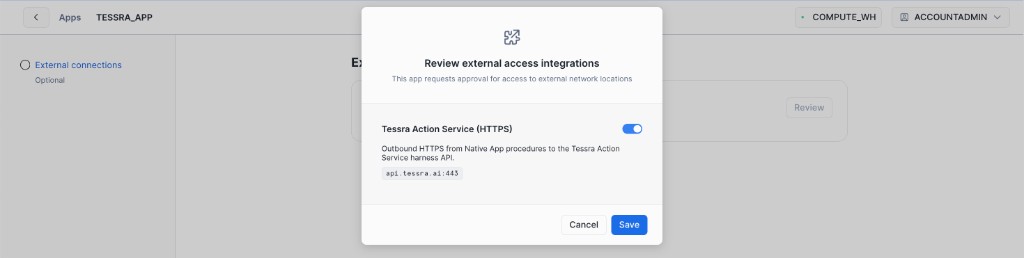
During installation, you'll be asked to allow external access.
Tessra uses this to:
- send approval requests
- trigger execution via webhook
- communicate with the Tessra Action Service
Click Review → Save → Proceed to app
Step 3 — Open the app
After installation, click Proceed to app.
You should see the Tessra dashboard.
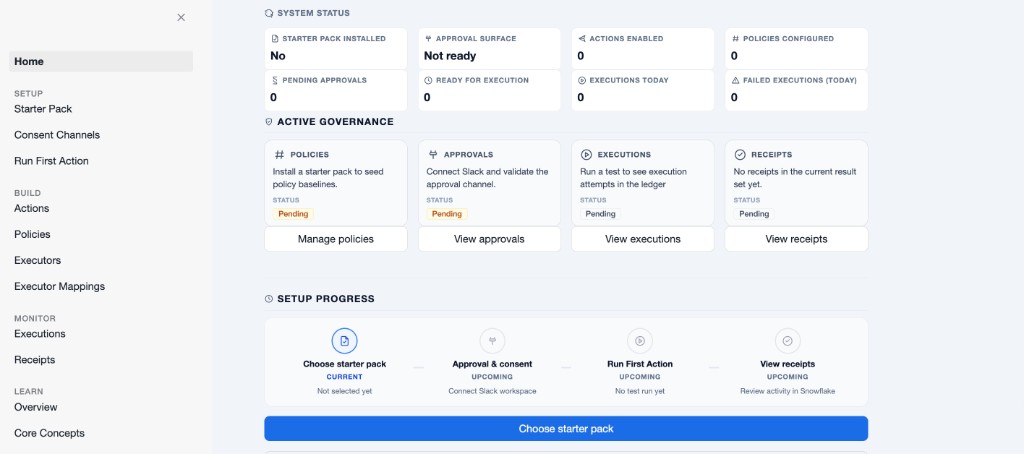
You're now ready to continue with starter setup.
Step 4 — Install the Ad Spend starter pack
In the app, click Choose starter pack and install Ad Spend.
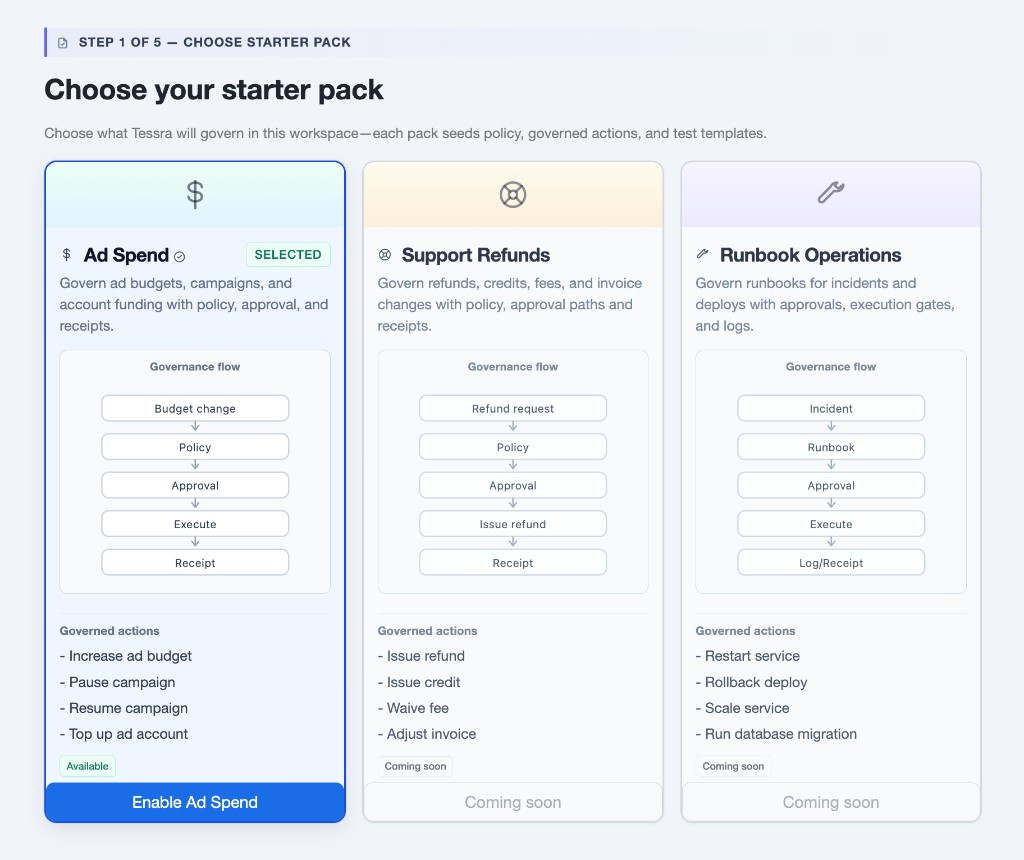
This sets up everything you need to run your first action:
- a ready-to-use action (
ad_budget.increase) - built-in policies (allow / approval / deny)
- a working executor (no external setup required)
You'll configure how approvals are handled in the next step.
Step 5 — Set up approvals (consent channel)
In the app, go to Consent Channels.
Tessra sends approval requests through one channel: Email or Slack.
Recommended for Quickstart: Email
Email works immediately and requires no additional setup.
- Select Email — approval links sent by email
- Enter your email address
- Click Save approval surface
You'll receive approval requests directly in your inbox.
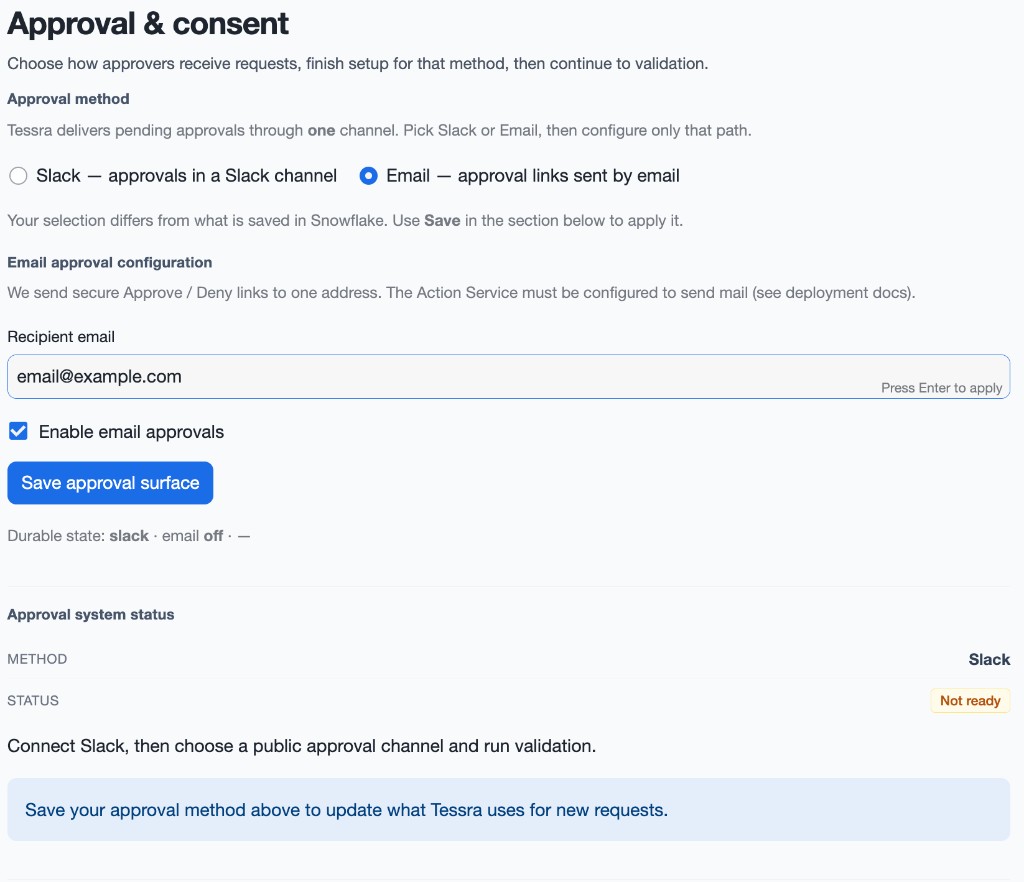
Optional: Slack (for teams)
Slack provides a richer approval experience, but requires additional setup.
You can connect Slack later once you've completed your first run.
For the fastest setup, use email. You can switch to Slack anytime.
Step 6 — Run your first action
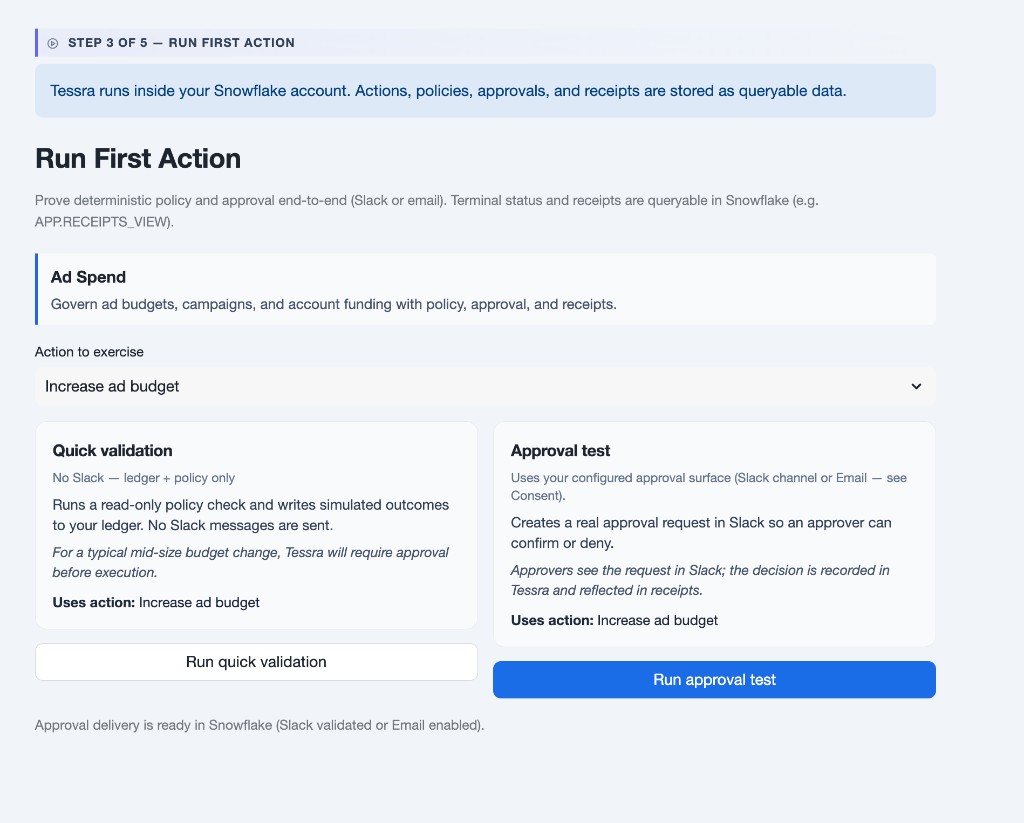
In the app, go to Run First Action and use the approval path to run your first real governed action.
- Select Increase ad budget
- Enter amount 5000 USD
- Click Run approval test
Do not use Run quick validation for this step. Quick validation skips approval and is not the full flow.
This path runs policy evaluation first, sends an approval request through your selected channel, runs execution after approval, and records a receipt.
Optional SQL path:
USE APPLICATION TESSRA_APP;

CALL APP.REQUEST_ACTION(
  'ad_budget.increase',
  PARSE_JSON('{
    "campaign_id": "launch_2026",
    "amount": 5000,
    "currency": "USD",
    "reason": "campaign pacing below target"
  }'),
  'prod',
  '',
  'snowflake_user',
  'Quickstart test',
  'demo_' || UUID_STRING(),
  '',
  'https://api.tessra.ai'
);
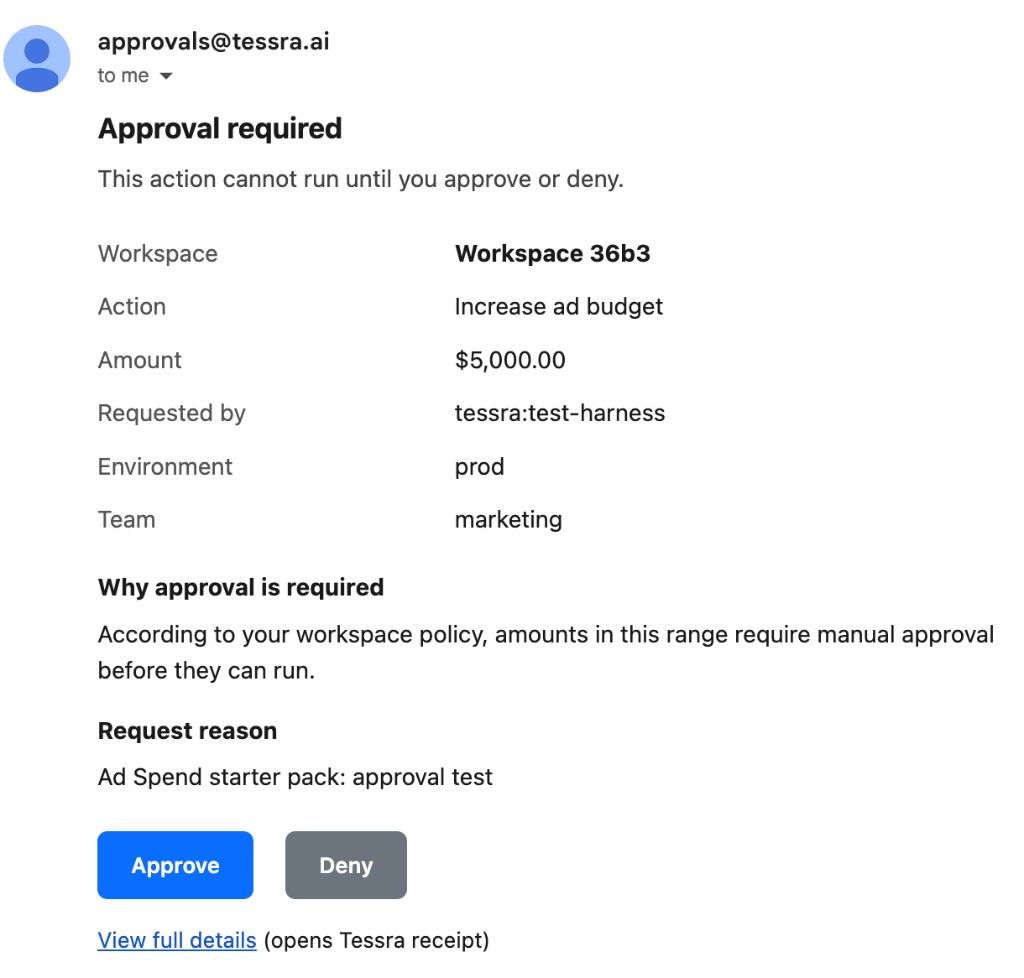
Step 7 — Approve request via email
Open the approval email and click Approve.
Wait for the approval page to confirm your decision.
Step 8 — Return to app and view result
Go back to the app and open the latest run result.
- Policy: Done
- Approval: Approved
- Execution: Completed
- Result: Success
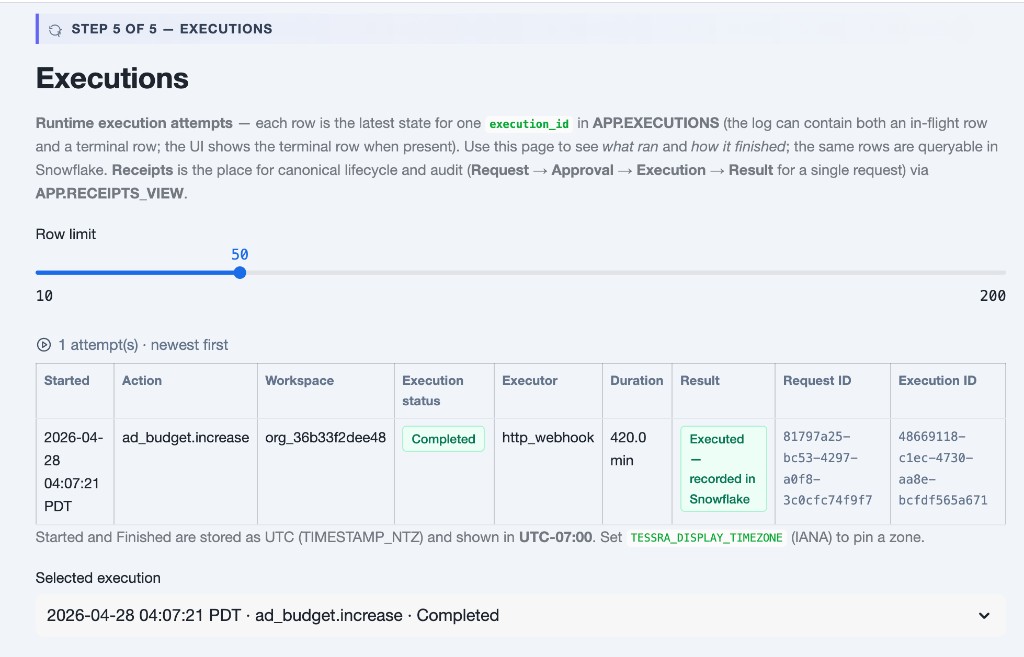
This is a governed action recorded as queryable data in Snowflake.
Step 9 — Next steps
- Own executor — Retool, Stripe, or a custom webhook: Build your own action and
APP.CONFIGURE_EXECUTOR. - Approvals in Slack or email — Configure approvals.
- Cortex — Cortex first run.
- Fast path (no approval) — use an amount in the starter allow band (for example
1500) so execution queues immediately after policy.